

Connect to your regular hosts easily
Discover Orbit hosts with sharing enabled on the same network. Check information at both ends and pair after host approval. Save devices to reconnect from the homepage next time.
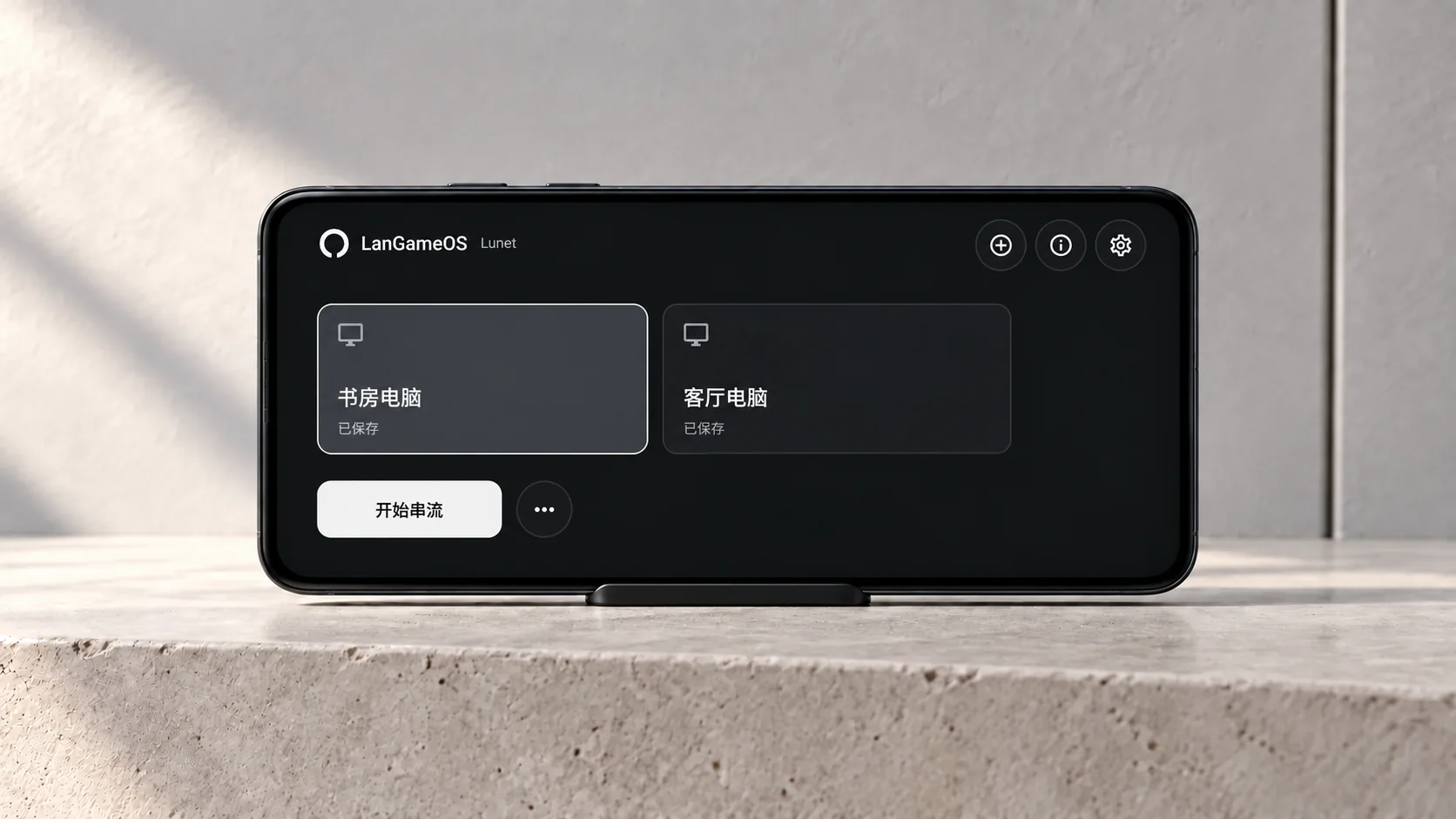
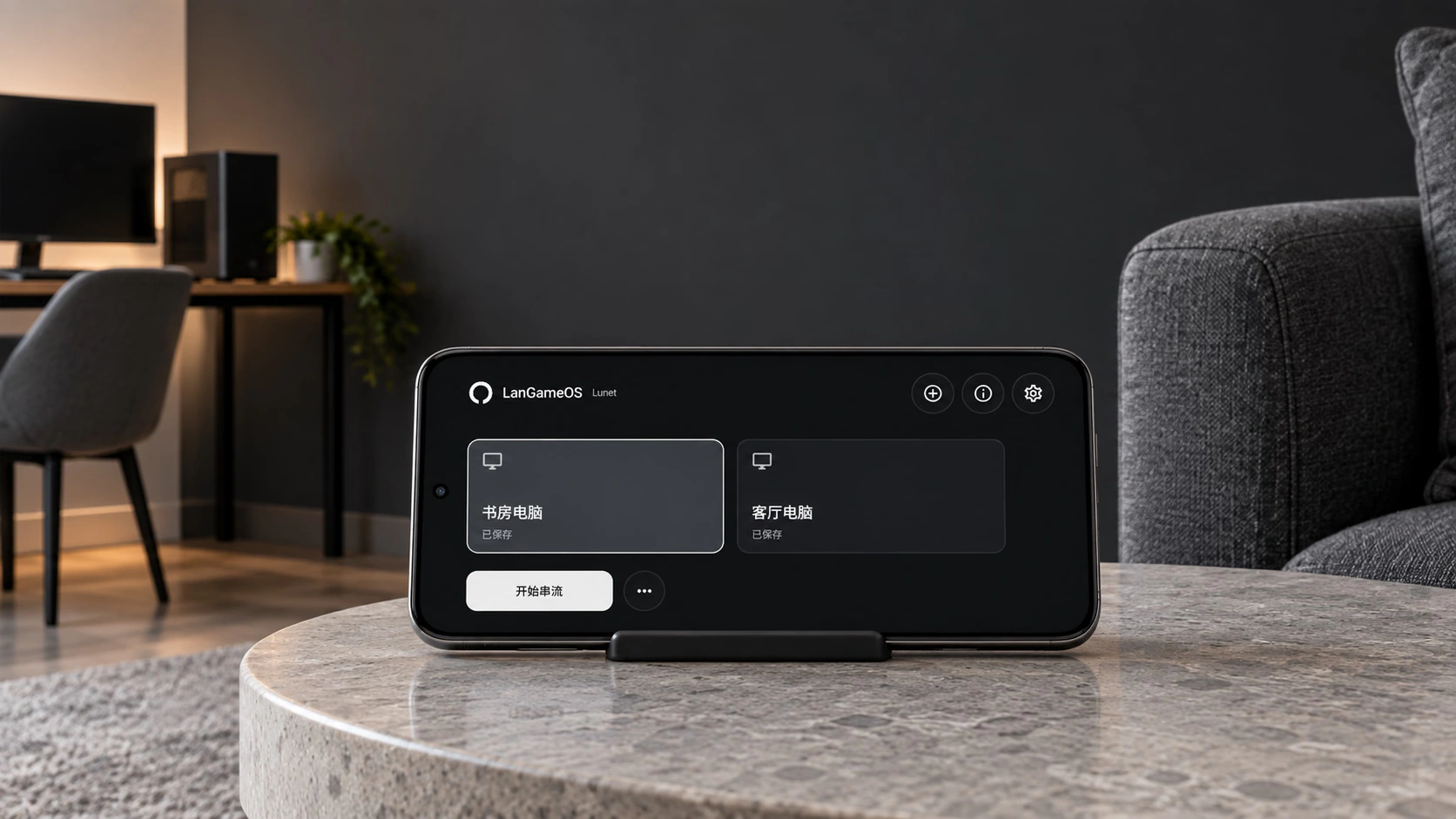
Bring SOFA's streaming core to Android and stream with Orbit on the same network. The game keeps running on the PC while video, audio, and controls come to your phone or tablet.
Move from desk to sofa, or phone to tablet. The game keeps running on your PC while its picture and sound come to you.
Keep the PC on and your Android device on the same network. Lunet connects to Orbit with SOFA's streaming core. Choose your preferred controls and take the game to another corner of your home.
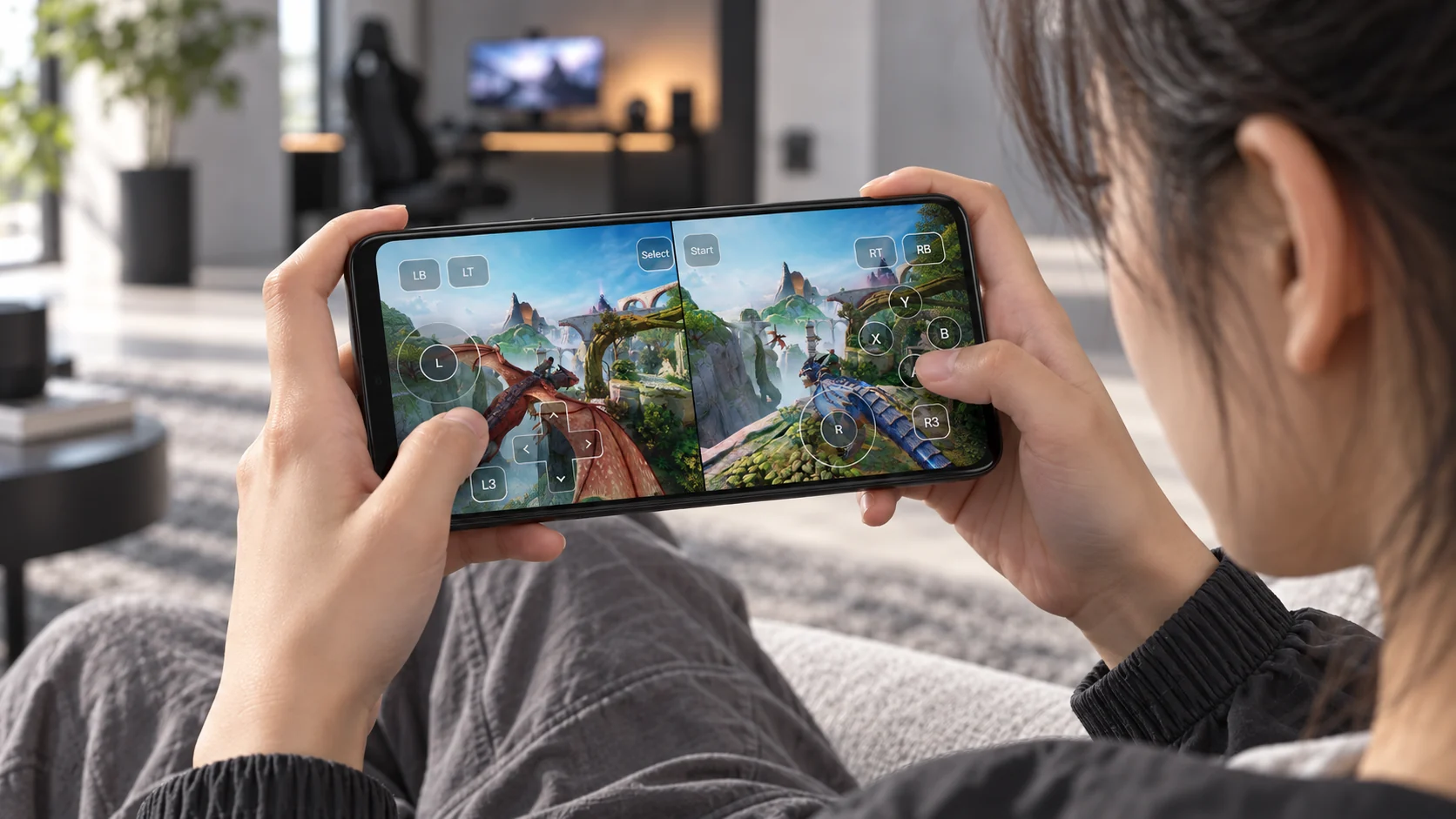
Discover Orbit hosts with sharing enabled on the same network. Check information at both ends and pair after host approval. Save devices to reconnect from the homepage next time.
Use a touchpad, on-screen controller, or external input device to operate shared games and desktops. The host authorizes keyboard/mouse and controller access separately.
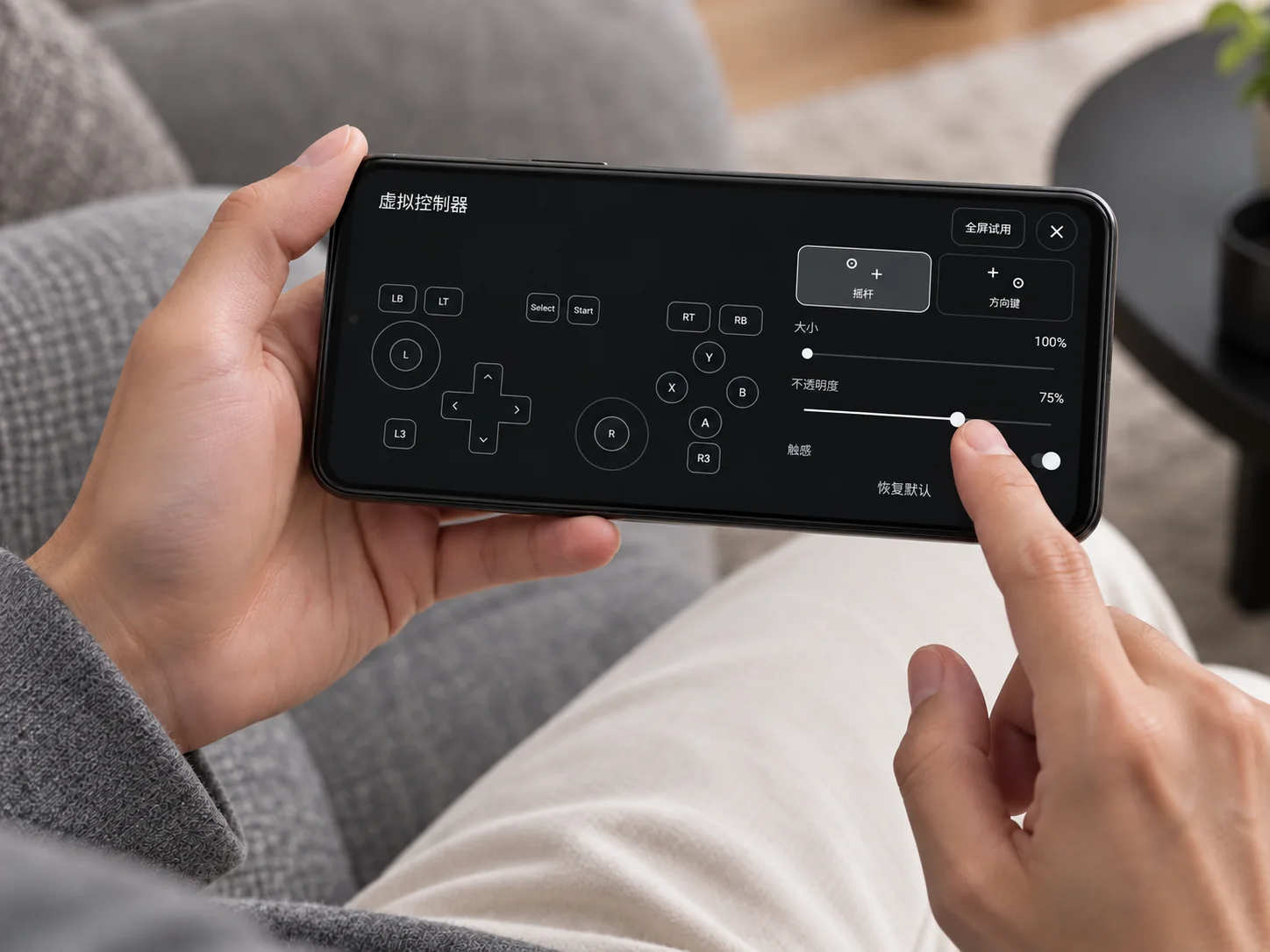
Adjust resolution, frame rate, and maximum bitrate within the capabilities supported by both the host and receiving device, then choose to show the full image or fill the screen. The experience depends on device capabilities and network conditions.
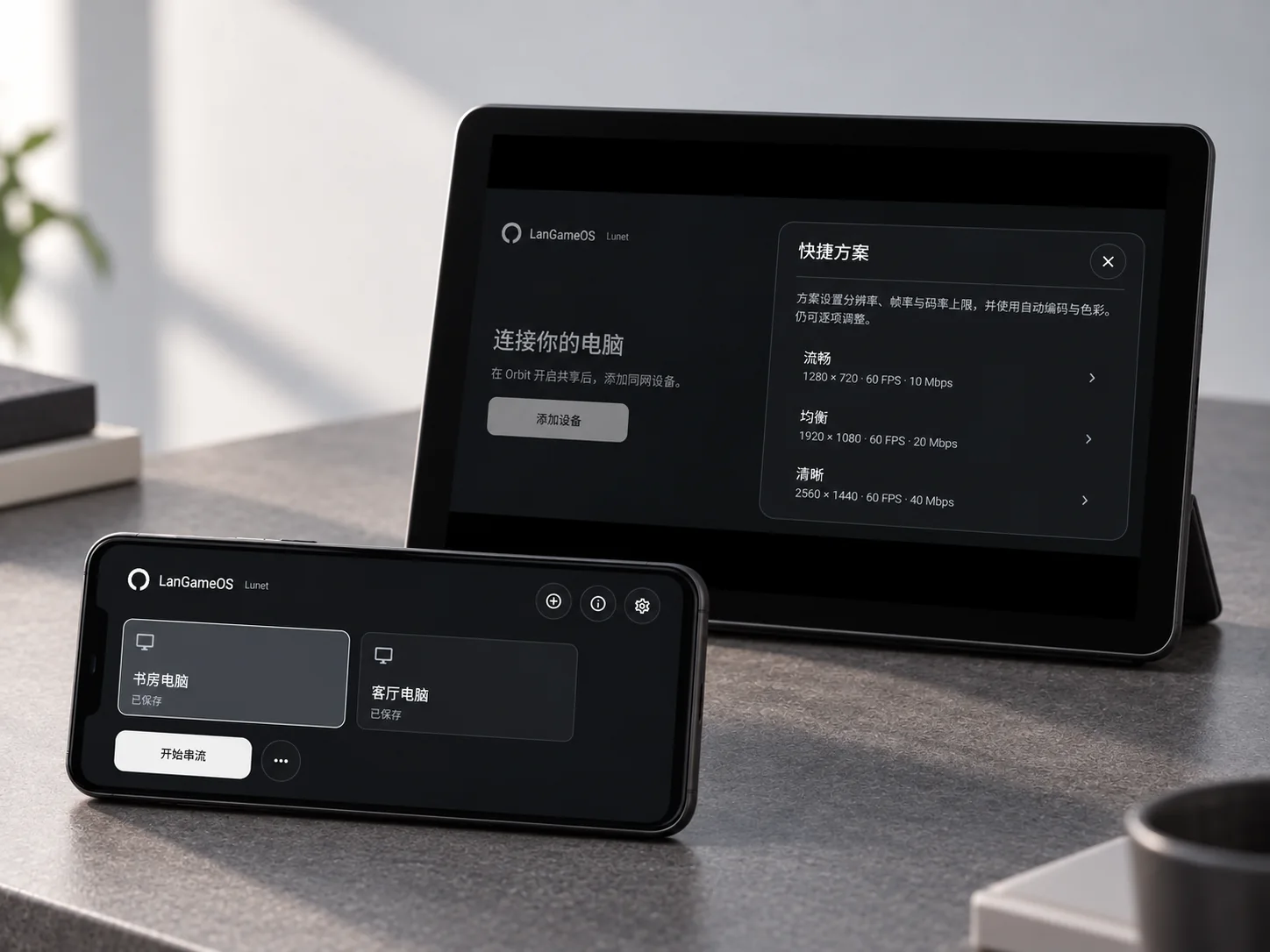
Enable SOFA sharing on the Orbit host and connect your Android device to the same network.
Discover the host in Lunet, check the verification codes shown at both ends, and approve pairing on the host.
Select a saved host to enter its screen, then adjust quality and display options for the current device and network.
Use the touchpad, keyboard, or on-screen controller according to host permissions. Disconnect when finished and retain the pairing for next time.
Understand the requirements and supported features to choose how you want to use the product.
Lunet brings SOFA's streaming core to Android and streams with Orbit. Games and apps still run through Orbit on the PC. Lunet receives audio and video and sends back authorized input, so the host must remain on and continue sharing.
The current connection method is intended for Orbit hosts on the same network. The capabilities shown on this page do not include connecting across the Internet. First connect the host and Android device to the same network.
Use a touchpad, on-screen controller, or compatible external input device according to the host's permissions. The host decides whether to allow control, and input-device support also depends on the Android device and the game.
LAN is used through Orbit on the host. Once a desktop containing LAN is shared and the appropriate control permissions are granted, you can operate it from Lunet. Lunet does not have a separate AI assistant.