LanGame Server Manager

Server setup and maintenance, in one place.

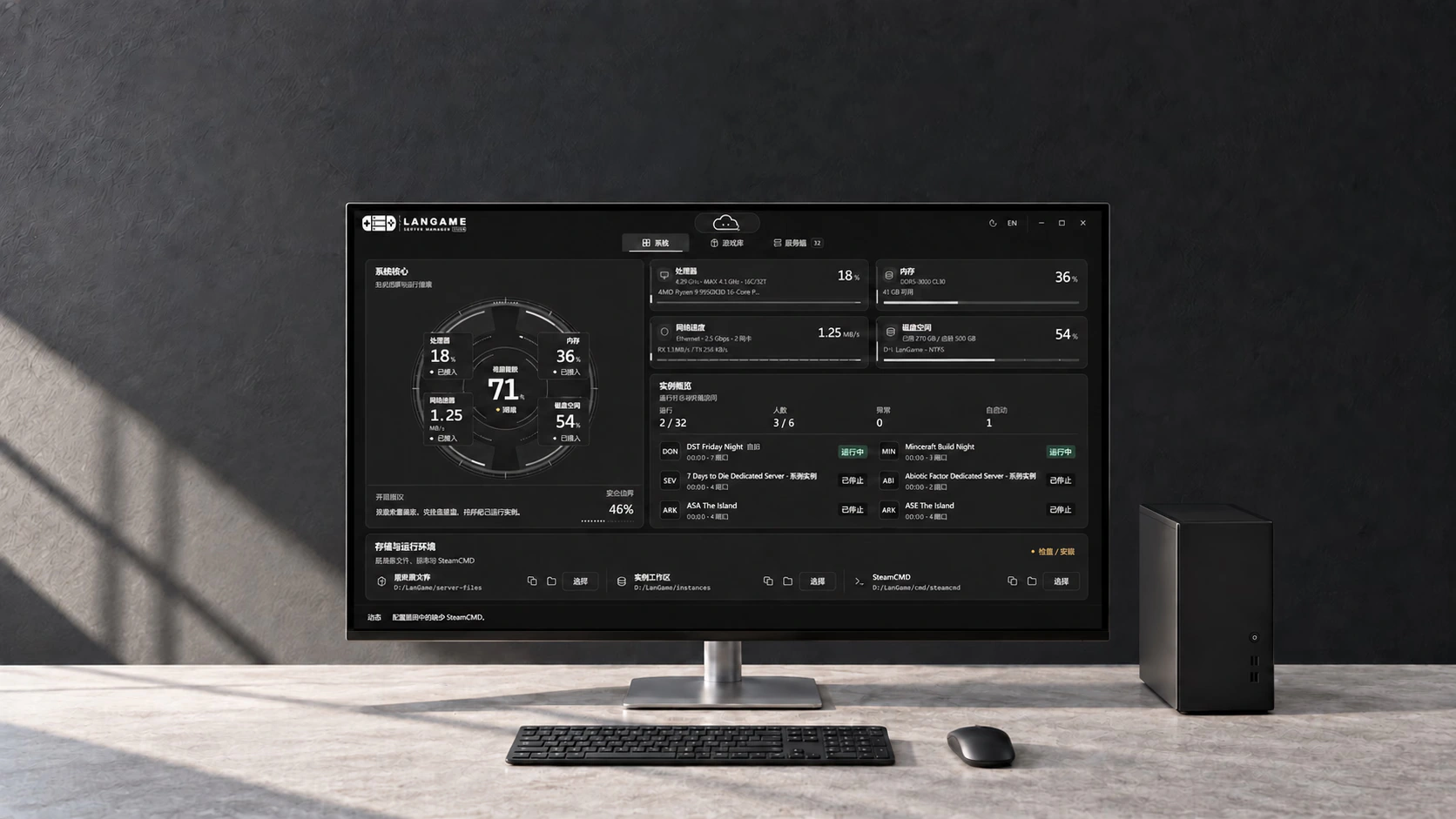
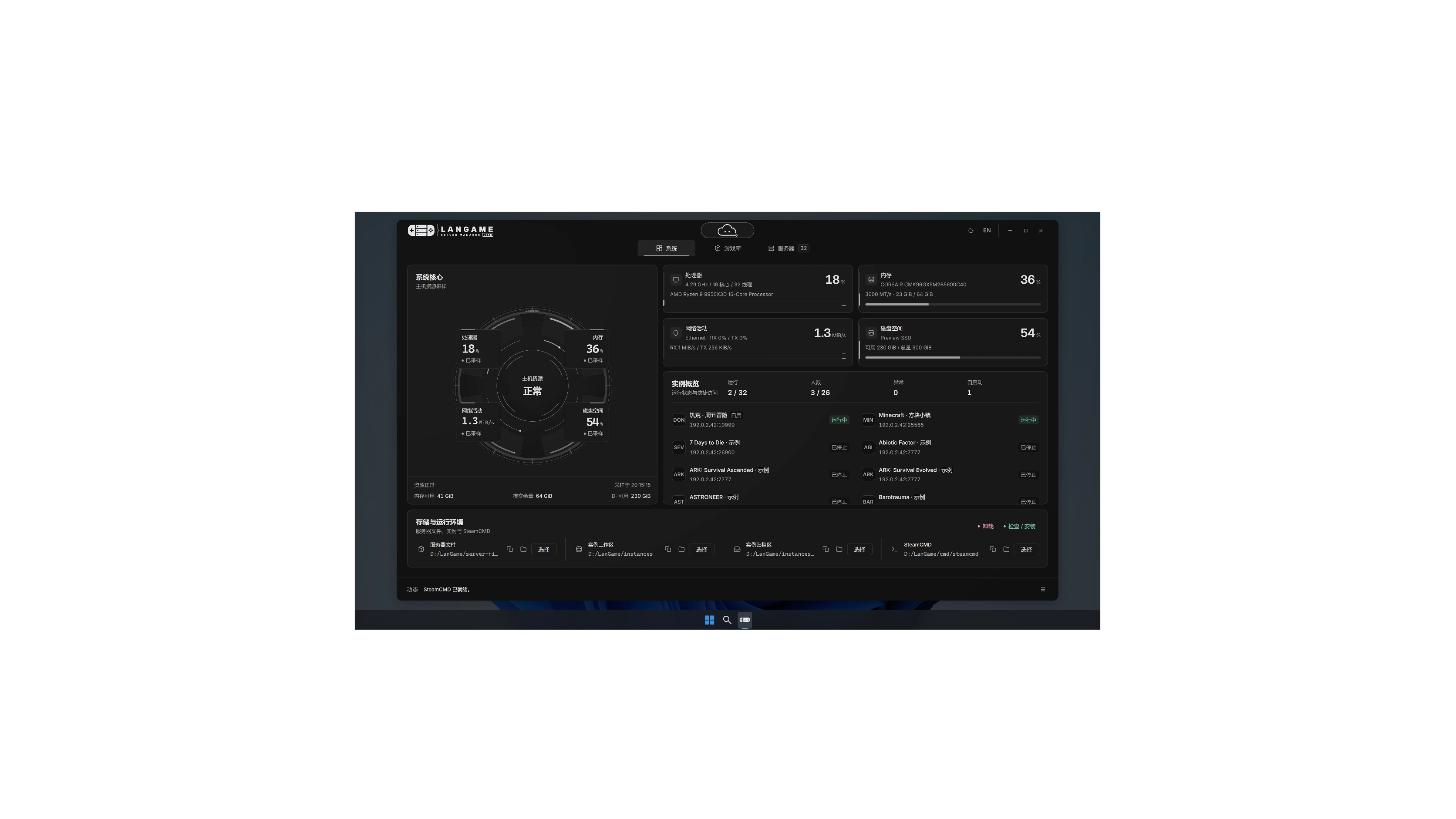
LGSM workspace: an AI-generated photographic scene composited with the real system interface; the software appears in a window on the monitor, retaining an illustrative desktop and sample data

For Windows players and server owners: manage, install, configure, and back up game servers with one click. LAN, your AI companion, helps you clear the obstacles so you can enjoy the game.

Use cases
Self-hosted game serversFor server owners and players who play together
System requirements
Windows PCDeploy and manage server instances on your own machine
Management
Visual controlsView resources, logs, and maintenance tasks in one place

Your own world, ready when you are

Plan a new game, a weekend squad session, or an all-night adventure. Start a private server for friends with one click, without cumbersome configuration and command lines.

See machine load and all game instances together on the system dashboard, with LAN helping analyze logs and troubleshoot. Adjust ports and rules visually, schedule local save backups, and make hosting easier so you can enjoy time together.
See your machine's workload clearly

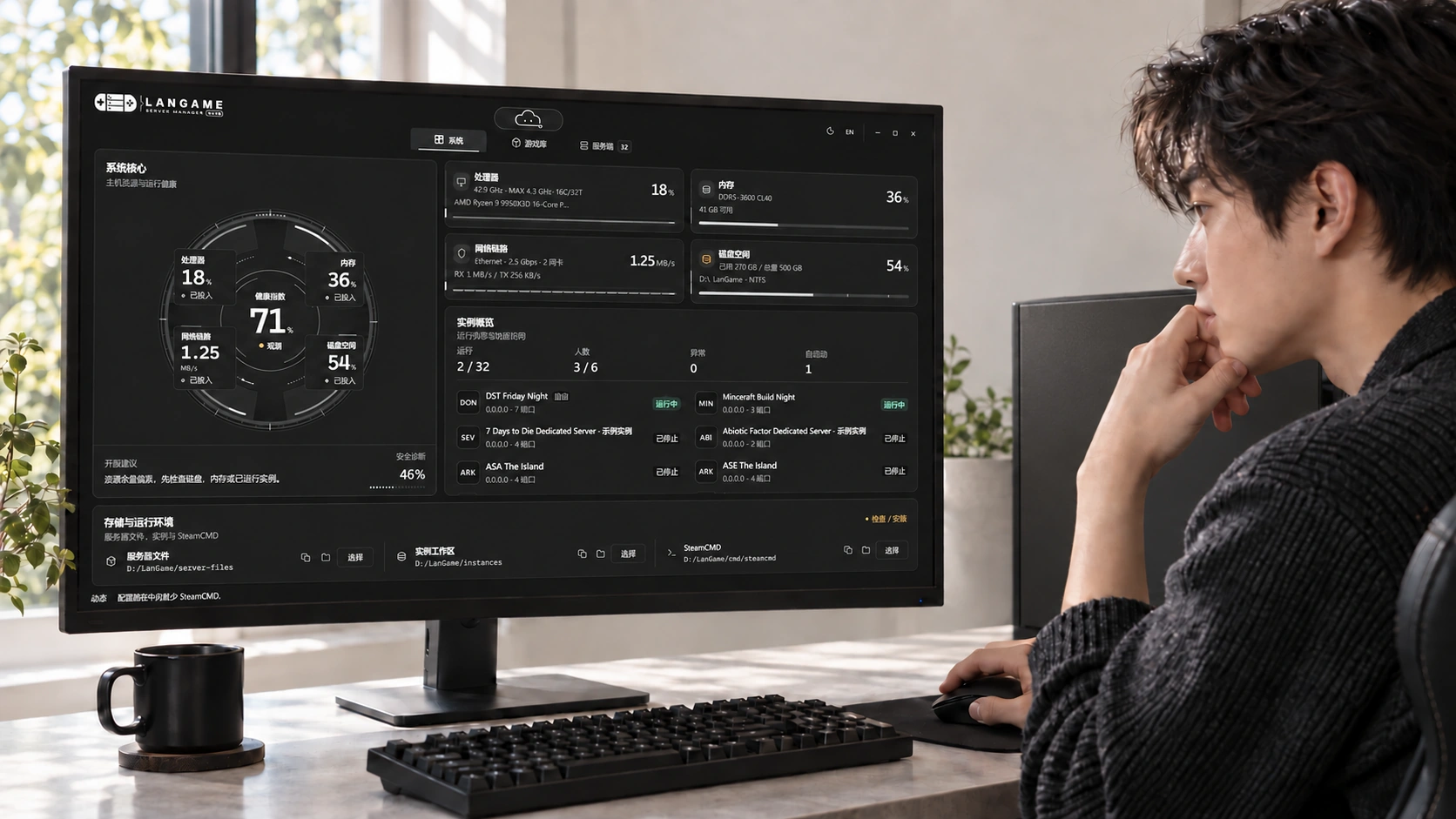
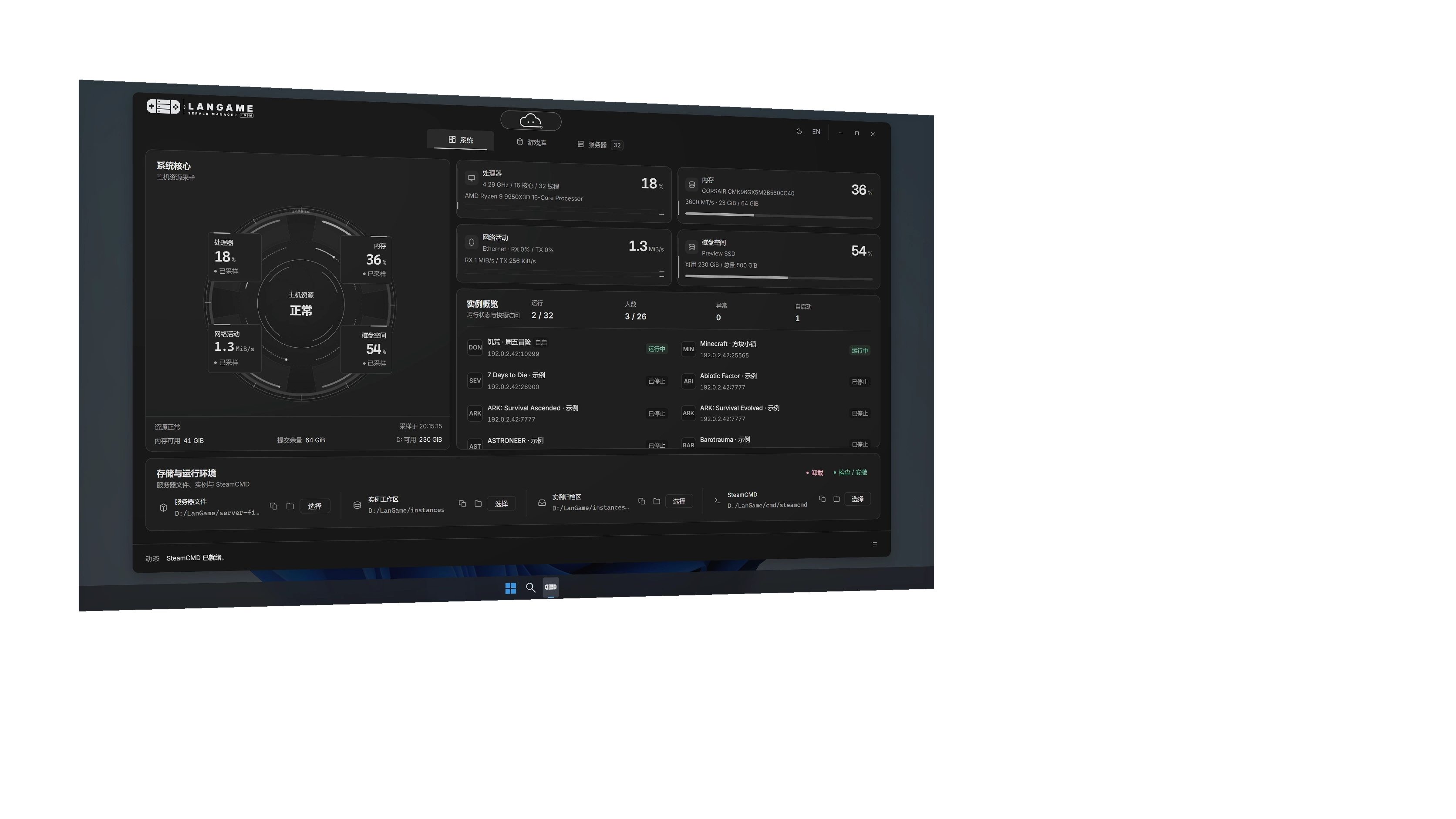
View CPU, memory, and instance status together on the system dashboard to guide server setup and resource adjustments. When something goes wrong, LAN can use the current instance and logs to help troubleshoot.

A server owner checking LGSM system status: an AI-generated scene composited with the real interface, with an illustrative desktop visible around the window and 32 sample instances

Deploy games as independent instances

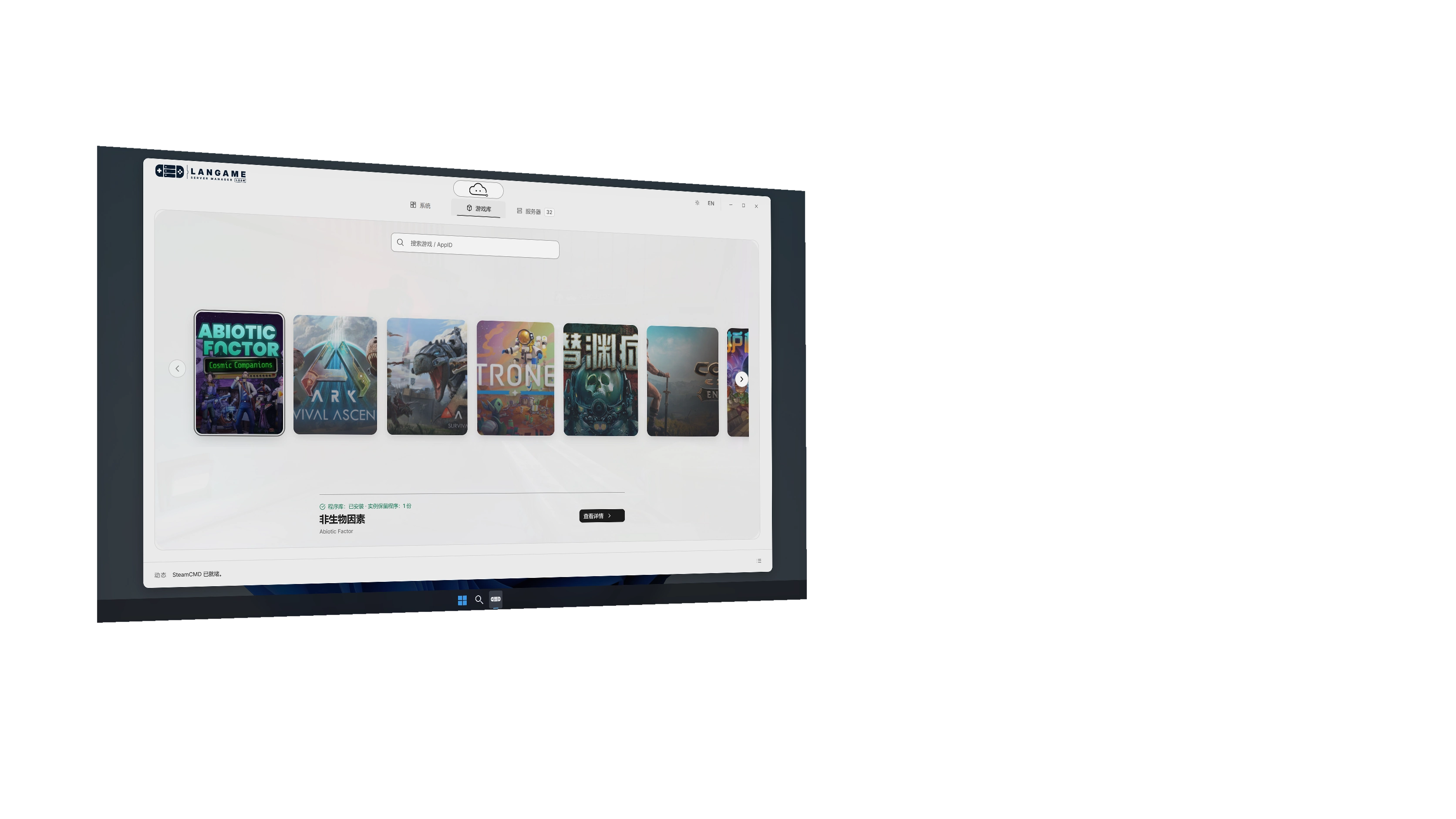
Choose a server from the supported games, then install and update it. Each instance manages its directory, ports, and native configuration separately, with a visual panel for game rules.

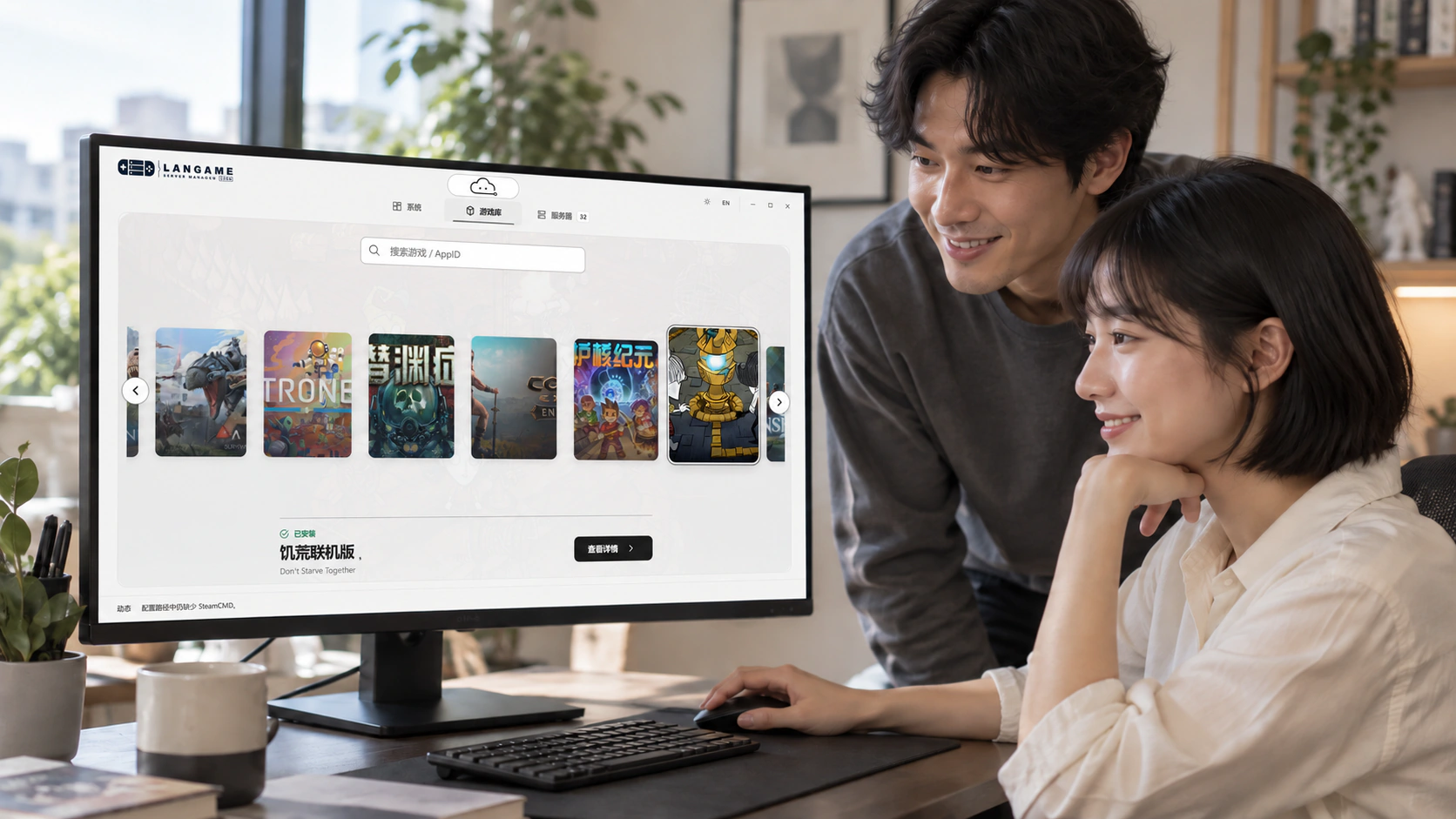
Two adult friends browsing the LGSM game library: an AI-generated scene composited with the real light-theme interface, with an illustrative desktop visible around the window

Keep everyday maintenance traceable

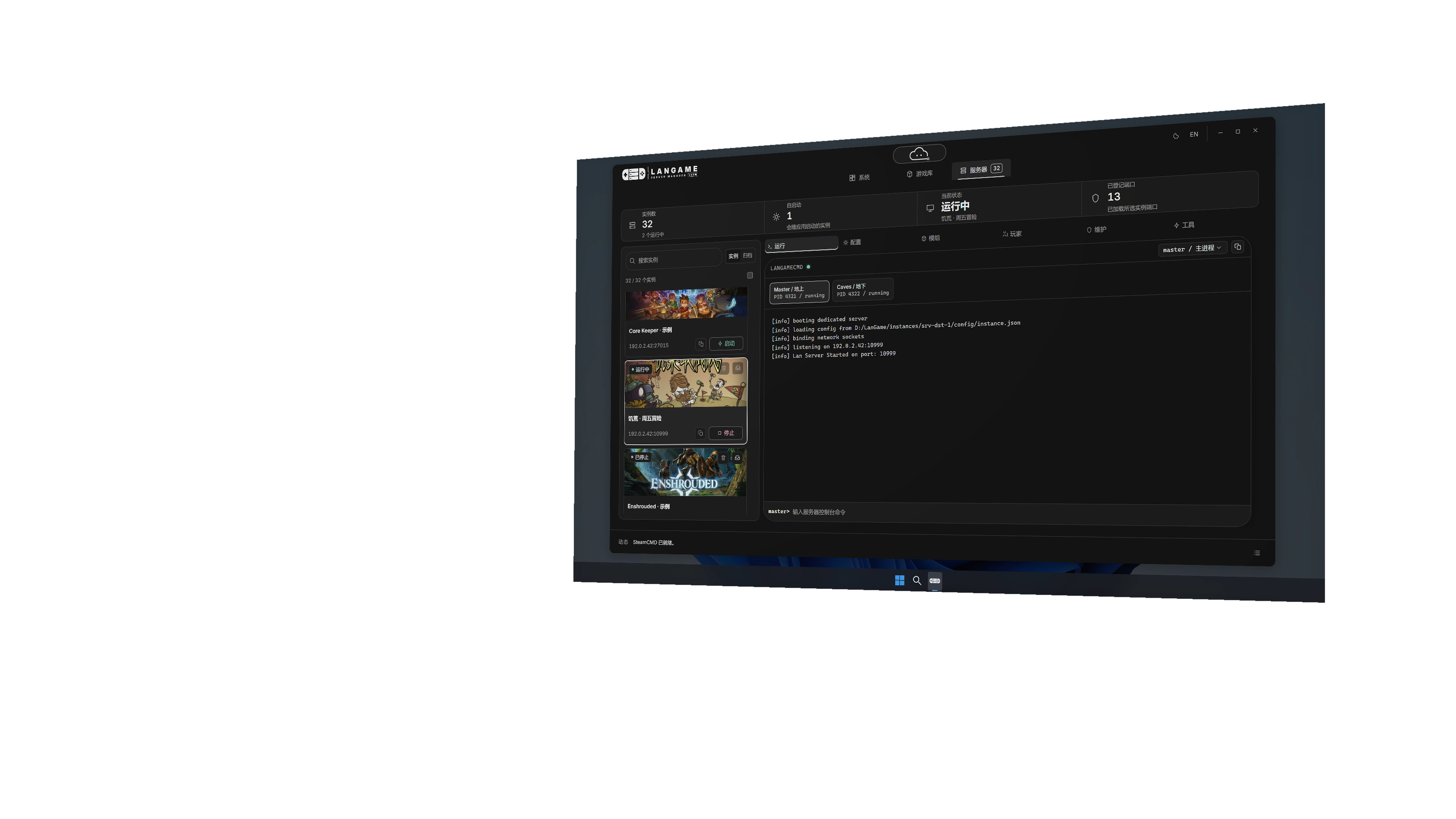
Manage starts and stops, console logs, backups, and restores in one place, using the mods and administrator tools supported by each game. Files, settings, and backups stay on your own machine.

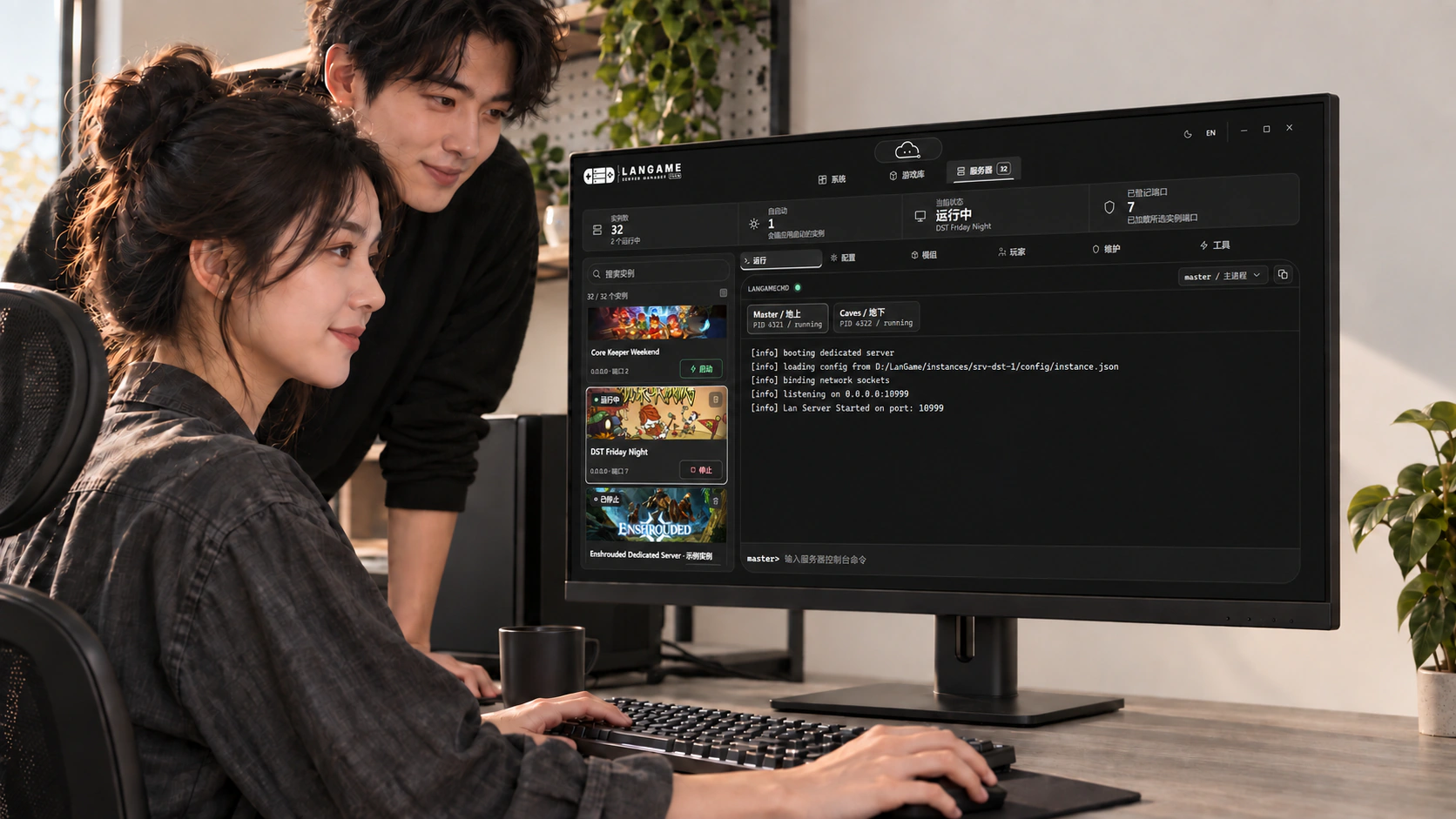
A server owner and friend managing LGSM instances: an AI-generated scene composited with the real interface, showing 32 sample instances and sample logs in the window

From your first server to everyday maintenance

  1. 01

    Choose and install a game

    Choose a supported game, check machine and server requirements, set the installation location, and download the server files.

  2. 02

    Adjust game rules

    Set the instance ports, player limit, and game rules. Whether a setting requires a restart depends on the game's requirements.

  3. 03

    Start and verify the connection

    Review startup logs and runtime status, share connection information through the game's supported methods, and check the firewall, router, and player connections.

  4. 04

    Plan routine maintenance

    Create a backup before updating or changing the world. Check logs or ask LAN for help when problems arise. Enable a crash-restart policy when needed and set a retry limit.

Find the game you want to play together

Server templates for 32 games. Deployment requirements and available management features depend on each game's template.

Abiotic Factor

ARK: Survival Ascended

ARK: Survival Evolved

ASTRONEER

Barotrauma

Conan Exiles

Core Keeper

Don't Starve Together

Enshrouded

HumanitZ

Minecraft Java

Necesse

Nightingale

Palworld

Project Zomboid

The Lord of the Rings: Return to Moria

RimWorld Together

Romestead

RuneScape: Dragonwilds

Rust

Satisfactory

SCUM

7 Days to Die

Sons Of The Forest

Soulmask

Squad

Terraria

The Forest

Unturned

Valheim

V Rising

Windrose

Before you begin

Understand the requirements and supported features to choose how you want to use the product.

Can friends connect directly once the server is running?

First confirm the game version, server address, and network reachability. Allowing traffic through the firewall does not make a server publicly accessible; the router, port forwarding, and ISP network may still require separate configuration.

How can LAN help troubleshoot?

With an available model service connected, LAN can use logs and instance information to assist with analysis and suggest solutions. Server operation and basic management do not require AI. Confirm specific causes against the logs and execution results.

How do settings, mods, and backups take effect?

Available settings and mod sources vary by game template, and some changes require an instance restart. Backups and automatic restarts follow enabled policies. Before restoring a save, check the target instance, backup time, and data scope.

Ready to start your server

View server setup guides